User Guide
Complete guide to all Notolog features and functionality.
Table of Contents
- Markdown Editing
- View Mode
- File Management
- Search Features
- Encryption
- Themes
- Multi-Language Support
- Settings Overview
Markdown Editing
Syntax Highlighting
Notolog provides real-time syntax highlighting for:
- Headers (
# H1,## H2, etc.) - Bold (
**text**) and Italic (*text*) - Code blocks (fenced with ``` or indented)
- Links (
[text](https://notolog.app)) - Lists (ordered and unordered)
- Blockquotes (
> quote) - Tables
- TODO items (
@todo)
Supported Markdown Extensions
Notolog uses the Python Markdown library with these extensions:
| Extension | Description |
|---|---|
extra | Abbreviations, attribute lists, definition lists, fenced code, footnotes, tables, Markdown in HTML |
toc | Table of Contents with header anchors |
codehilite | Syntax highlighting for code blocks |
Code Blocks
Fenced code blocks with language specification:
TODO Highlighting
The @todo tag is a Notolog-exclusive feature (not standard Markdown). It is highlighted in both Edit and View modes for easy task tracking:
For more syntax examples, see the Markdown Syntax Guide.
View Mode
Toggle between Edit and View modes:
- Edit Mode: Write and modify Markdown
- View Mode: See rendered HTML output
View Features
- Rendered Markdown with proper styling
- Clickable links (opens in browser)
- Syntax-highlighted code blocks
- Image display (local and remote) - see Image Handling below
- Table formatting
Image Handling
Images are automatically: 1. Cached in memory for fast display 2. Optionally saved to a local images directory 3. Displayed with proper scaling
Configure in Settings → Viewer tab → Auto-save external images to disk.
File Management
File Tree
The left panel shows your notes directory:
- Folders: Displayed with folder icon
- Markdown and plain text files:
.md,.txt,.htm,.html - Encrypted files:
.encextension
Creating Files and Folders
New File:
- Toolbar →
New File
New Folder:
- Right-click on empty space in the file tree →
New Folder
Renaming and Deleting
- Right-click on file/folder →
RenameorDelete - Confirmation dialog prevents accidental deletion
Litter Bin: Deletion is reversible by default. Deleted files are marked as deleted but remain on disk. When the "Litter bin" option is active (icon below the file tree), deleted files are visible and can be:
- Restored: Right-click → Restore
- Deleted completely: Right-click → Delete completely
Important Note
When the Litter bin is inactive, deleted files are hidden from the file tree but still exist on disk and can be found via your system's file manager.
File Meta-Headers
Notolog stores metadata in HTML comment headers:
<!-- {"notolog.app": {"created": "2026-01-01 00:00:00", "updated": "2026-01-01 00:00:00", ...}} -->
# My Note
This preserves: - Creation timestamp - Last modification time - Future: Custom metadata
Search Features
In-File Search
Press Ctrl+F to open the search bar:
- Case Sensitive: Toggle with button
- Navigation: Previous/Next match buttons
- Counter: Shows "X of Y" matches
Quick File Filter
Type in the file tree search box to filter:
- Filters by filename
- Real-time filtering
- Clear with
Xbutton orEsc
Encryption
Notolog provides AES-128 encryption for sensitive notes.
Encryption Details
| Property | Value |
|---|---|
| Algorithm | AES-128 CBC (via Fernet) |
| Key Derivation | PBKDF2HMAC with SHA-256 |
| Iterations | 768,000 |
| Salt | 32 bytes, cryptographically random |
Encrypting a File
- Open the file you want to encrypt
- Go to
File→Encrypt File(or toolbar button) - Enter a strong password
- Optionally add a password hint (avoid using personal info like date of birth - use something memorable yet unique that won't give clues if the file is accessed by others)
- File is saved with
.encextension
Opening Encrypted Files
- Click on
.encfile - Enter your password
- File decrypts in memory
- Edit and save as normal
Password Best Practices
- Use strong, unique passwords
- Consider a password manager
- Password hints are stored unencrypted
- No password recovery - keep backups!
Themes
Notolog includes 6 built-in themes:
| Theme | Description |
|---|---|
| Default | Clean, neutral design |
| Calligraphy | Rice paper aesthetic with ink-style text |
| Nocturne | Dark theme for night work |
| Noir Dark | High-contrast dark theme |
| Spooky | Halloween-inspired colors |
| Strawberry | Playful, warm colors |
Changing Themes
Settings → General tab → Theme
Changes apply immediately, no app reload needed. 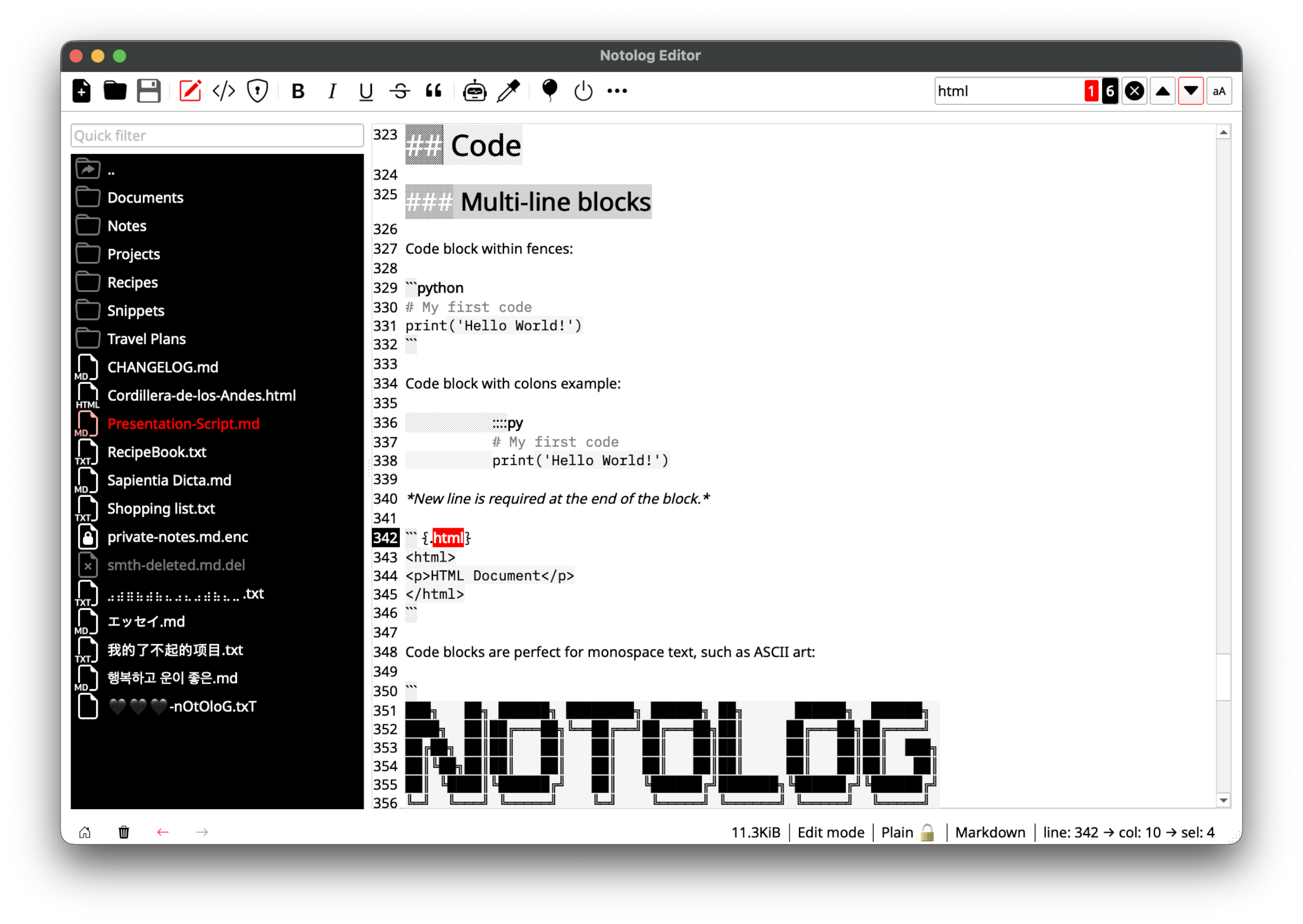
Multi-Language Support
Notolog supports 19 languages:
- English (default)
- Chinese (Simplified) - 简体中文
- Dutch - Nederlands
- Finnish - Suomi
- French - Français
- Georgian - ქართული
- German - Deutsch
- Greek - Ελληνικά
- Hindi - हिन्दी
- Indonesian - Bahasa Indonesia
- Italian - Italiano
- Japanese - 日本語
- Korean - 한국어
- Latin - Latina
- Portuguese - Português
- Russian - Русский
- Spanish - Español
- Swedish - Svenska
- Turkish - Türkçe
Changing Language
Settings → General → Language
Instant, but in some cases restart may be required for full effect.
Settings Overview
Access via Settings menu or toolbar.
General Tab
- Language: UI language
- Theme: Visual theme selection
- Default folder for notes: Primary directory for notes
- Show Main Menu: Toggle main menu visibility
- Show Navigation Arrows: Display navigation arrows in the status bar
- Show Global Cursor Position: Display cursor position in the status bar
- Font Size: Adjust text size (range: 5-42)
Editor Tab
- Show Line Numbers: Display line numbers in editor
Viewer Tab
- Convert Text Emojis to Graphics: Render emojis graphically
- Highlight TODOs: Emphasize @todo tags
- Require Confirmation to Open Links: Show confirmation dialog before opening external links in your browser
- Auto-save external images to disk: Save downloaded images locally
AI Config Tab
- Active Inference Module: Select from available AI inference modules
- Multi-turn dialogue with conversational memory: Enable multi-turn dialogue that retains the previous prompt
- Convert the result to Markdown: Convert AI output to Markdown format
See AI Assistant Guide for AI module-specific settings.
For AI features, continue to the AI Assistant Guide.